Writer Mode is BookZeta's distraction-light, chapter-based editor for prose — novels, non-fiction, short stories and the text of illustrated and children's books. It gives you a clean writing surface with everything you need one click away: a structural sidebar, rich formatting, autosave, live counts, an AI co-writer and your Series Bible. This tour walks you through the layout so you know where everything lives before you start.
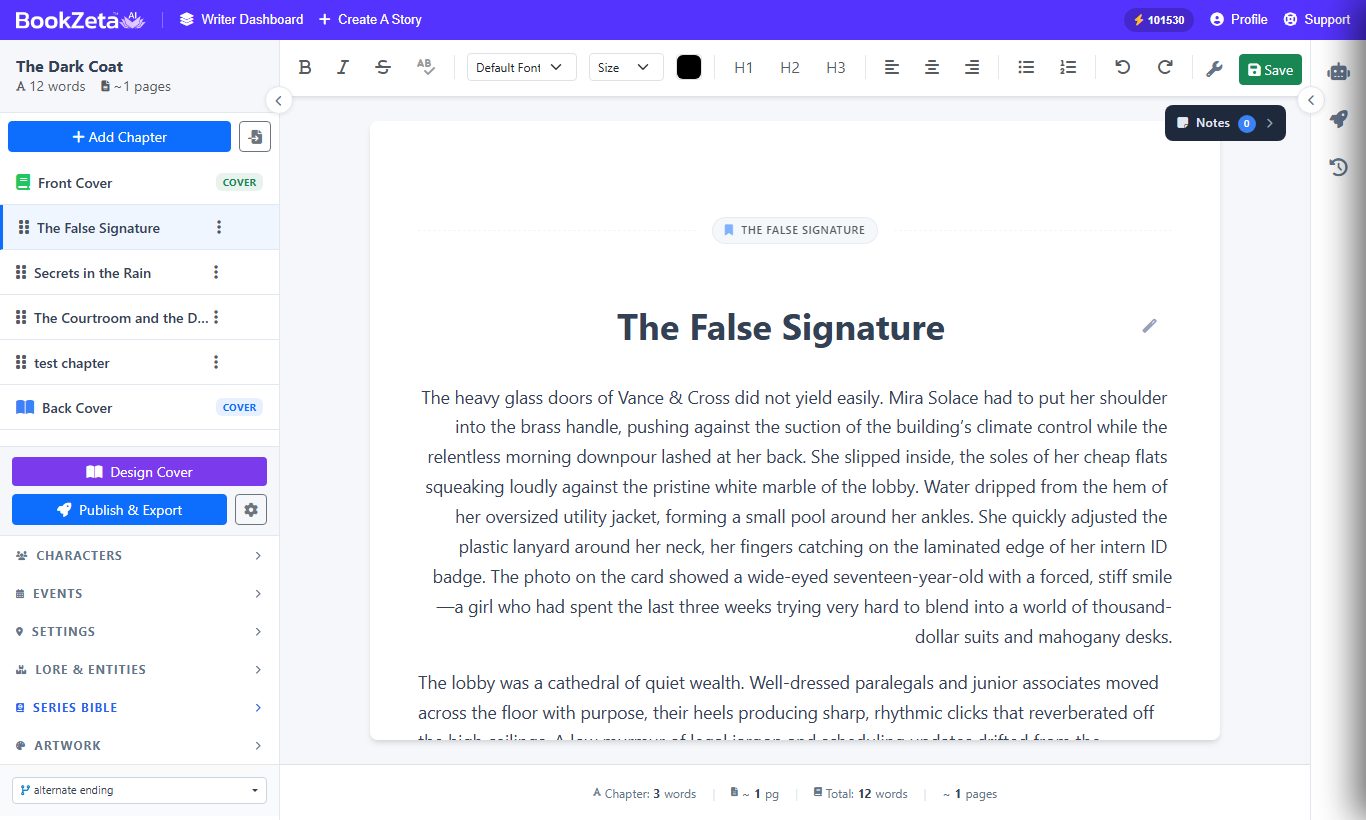
The three-panel layout
The editor is built around three areas that stay in view as you work:
- Chapter list (left) — the structural spine of your manuscript. Add new chapters, rename them, reorder them by dragging up or down, or delete one. Chapters marked with a COVER badge are your front and back covers; clicking those opens the dedicated Cover Editor instead of the prose editor.
- Editor (centre) — a rich-text canvas. The toolbar gives you bold, italic, strikethrough, headings (H1–H3), left/centre/right alignment, bulleted and numbered lists, and undo/redo. A spellcheck toggle turns your browser's native spell checker on or off so you can draft without red underlines when you want to.
- Side panel (right) — your reference material: free-form Notes, Characters drawn from your Series Bible, and story metadata. See Notes, characters & story metadata for how to use it.
Autosave and never losing work
You don't have to remember to save. The editor autosaves continuously in the background as you type, and a status indicator shows when your work is saved. If you prefer to save a moment manually, press Ctrl + S (Cmd + S on Mac). For a deeper safety net, every chapter also keeps a history of snapshots you can roll back to — see Version history.
Live word and page counts
The footer tracks length as you write: the current chapter's word count and estimated page count (roughly 250 words per page), plus the totals for the whole manuscript. This makes it easy to pace yourself toward a target length without leaving the page.
Mentioning characters and places
Type @ anywhere in your prose to open an auto-complete menu of the characters and settings you've cast from your Series Bible. Tagging them links the scene to the right people and places, which also helps the AI assistant understand exactly who is involved.
Common questions
- Where did my cover go? Cover pages live in the chapter list with a COVER badge and open the Cover Editor, not the text editor.
- Why don't I see Notes in my export? Notes are private and never export — that's by design.
- Can I write entirely by hand? Yes. The AI is optional; manual editing never costs anything.
Where to go next
Ready to fill it with words? Import an existing manuscript or use the AI assistant to draft and polish. Power users should learn the keyboard shortcuts.