BookZeta offers a few different ways to create, and the one you pick comes down to a single question: how much do you want to do by hand, and how much should the AI do for you? There's no wrong answer, and you're never locked in — you can start fast and finish hands-on, or the other way around.
This guide walks through each mode, who it suits, and how to choose.
Quick Mode
One click. You give the AI your prompt, genre and audience, and it generates the whole thing — title, synopsis, outline, chapters and images — in the background.
Best for: trying an idea fast, getting a complete first draft to react to, or seeing what the AI does with a concept before you invest time. Quick Mode covers every story type, including movie, TV and play scripts.
Because Quick Mode produces a full work in one go, it's the most point-intensive option. See Understanding Creation Points for the one-click costs, and One-click & auto-generated books for the full walkthrough and options.
Advanced Mode
A guided, step-by-step flow that builds a novel piece by piece: you generate (or write) a synopsis, then an outline, then chapters one at a time. You can edit the outline before any chapters are written, which gives you control over pacing and structure without doing all the raw writing yourself.
Best for: authors who want a say in the shape of the story — the arcs, the beats, the chapter order — but are happy to let the AI handle the drafting. Advanced Mode is for books and short stories; scripts use Quick or Writer Mode instead.
Writer Mode
A full chapter-based editor for writing your own book, with AI assistance available whenever you want it. You can write everything yourself and reach for the AI only to suggest the next paragraph, rewrite a sentence, expand a thin scene, brainstorm, or generate a whole chapter when you're stuck.
Best for: writers who want their own voice on the page with AI as a helper, not a ghostwriter. Learn more in The Writer editor: a tour and the AI writing assistant. Writer Mode also handles movie, TV and play scripts with a screenplay-aware editor.
Graphic Mode
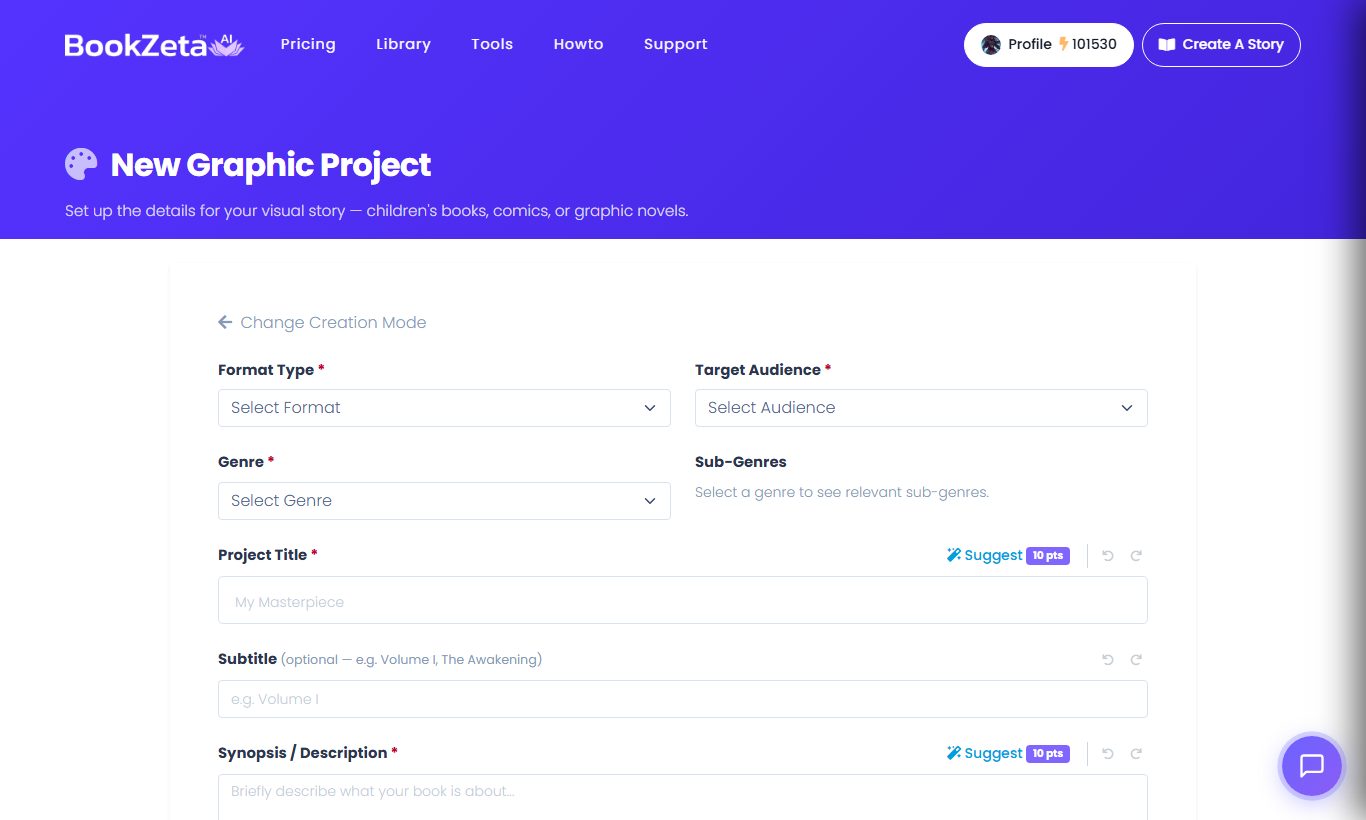
A visual canvas for comics, webtoons, graphic novels and children's books. Instead of a text editor you get a page-by-page workspace where you arrange panels, add speech bubbles, and generate or place artwork directly on the page.
Best for: any illustrated, visual-first project. See the Graphic mode tour.
How to choose
| If you want to… | Use |
|---|---|
| Get a complete draft in one click | Quick Mode |
| Shape the outline, then auto-write | Advanced Mode |
| Write it yourself with AI help | Writer Mode |
| Build a comic, webtoon or kids' book | Graphic Mode |
| Write a movie, TV or play script | Quick or Writer Mode |
Good to know
You're not committing for life. A common workflow is to generate a draft quickly and then edit it by hand in Writer or Graphic mode. Whichever mode you choose, manual editing is always free — only AI generations spend Creation Points.
Ready to begin? Head to Creating your first project.