Graphic Mode is BookZeta's visual, page-by-page canvas for making comics, webtoons, graphic novels and children's books. Instead of writing chapters, you build each page by placing art, text, speech bubbles and shapes exactly where you want them, then move on to the next page. This tour walks through the main areas of the editor so you know where everything lives before you start creating.
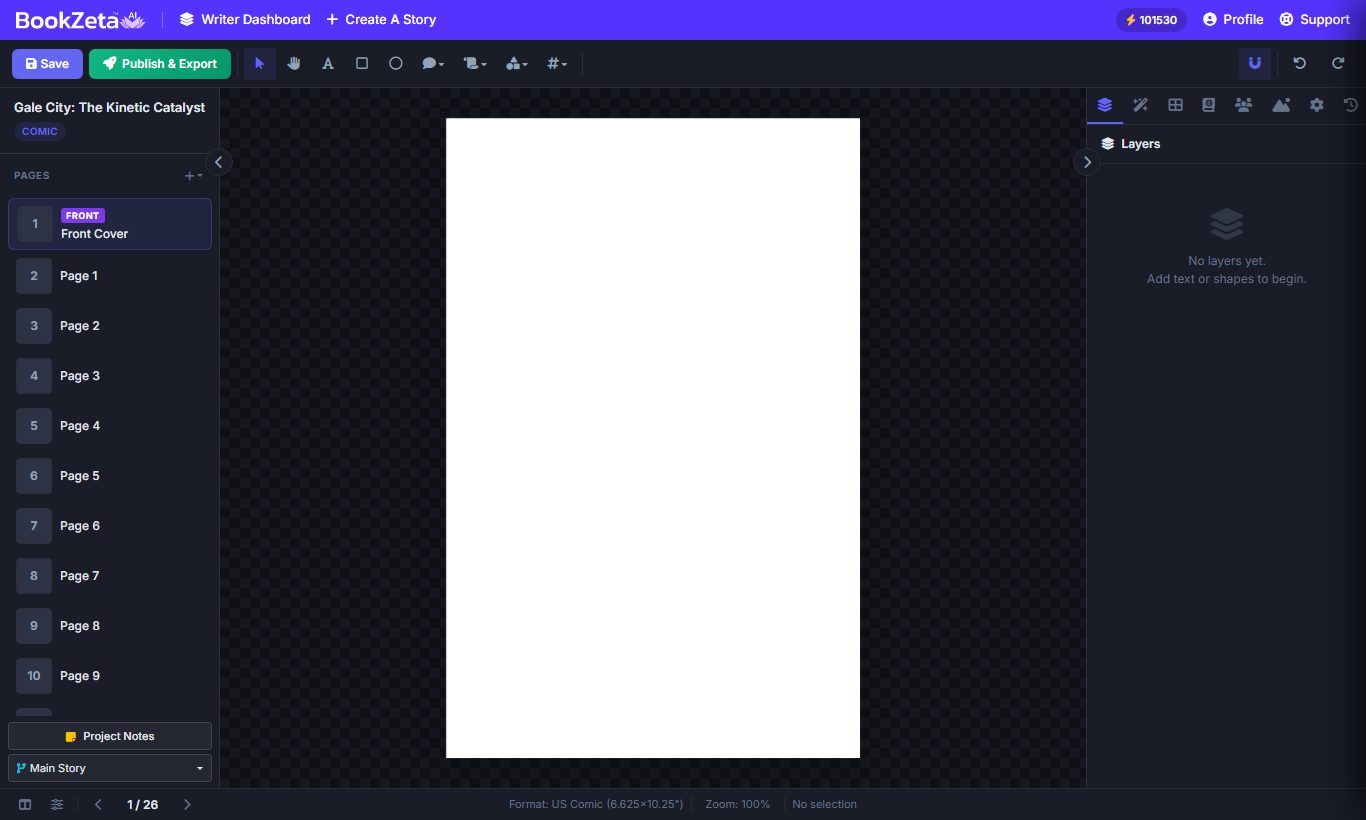
The canvas and core tools
The canvas is the page you're working on. Everything you add becomes a separate object you can move, resize, rotate and restack. The core tools are:
- Select — click any object to move, scale or rotate it, and to change which objects sit in front of others.
- Text — drop in titles, captions and dialogue using a large font library, with full control over size, color and alignment.
- Shapes — draw rectangles, circles and lines, with adjustable fill, stroke and opacity.
- Speech bubbles — standard, rounded, thought, shout and narration boxes. See Speech bubbles & panel templates.
- Layers panel — reorder, hide, lock and rename every element. More in Layers, fonts & typography.
Pages and formats
The left sidebar manages the structure of your book. You can add standard pages or dedicated cover pages, and choose an aspect ratio to suit your project — including children's landscape, square, manga, US comic, and webtoon vertical scroll. Pick the format before you build a page so your art and panels are sized correctly from the start.
You don't have to draw panels by hand. Page templates let you drop in ready-made grids — 2-panel, 4-panel, tiered, and dynamic manga layouts — and then place your art into each panel. This is the fastest way to get a professional-looking page started.
Art, characters and dialogue
The right-hand panel is where you generate artwork. Choose an art style (watercolor, cartoon, manga, photorealistic and more), and BookZeta keeps your characters recognizable from page to page using their stored identity and outfits. Full details are in Generating & styling AI artwork.
When you type dialogue, the AI can suggest lines tailored to what's happening on the page, and you can tag characters from your roster so the writing matches who's in the scene.
Exporting your work
When pages are ready, you have several export options: a PNG per page, a full PDF, a flat HTML file, or a webtoon ZIP for vertical-scrolling stories — see Exporting webtoons.
Tips and common pitfalls
- Set your page format first. Switching aspect ratio after you've laid out a page can leave art positioned awkwardly.
- Lock your finished background layer so you don't nudge it while working on foreground art or text.
- Use page templates instead of drawing panels by hand — it keeps spacing consistent across the book.
- Learn the keyboard shortcuts to speed up saving, adding pages and switching drafts.