The Cover Editor is a dedicated design surface for making professional book covers — whether you need a single front cover for an eBook or a full wraparound for print. It's a canvas where you arrange text, shapes and images freely, and it understands the difference between a digital cover and a print-ready spread so your file comes out correctly sized.
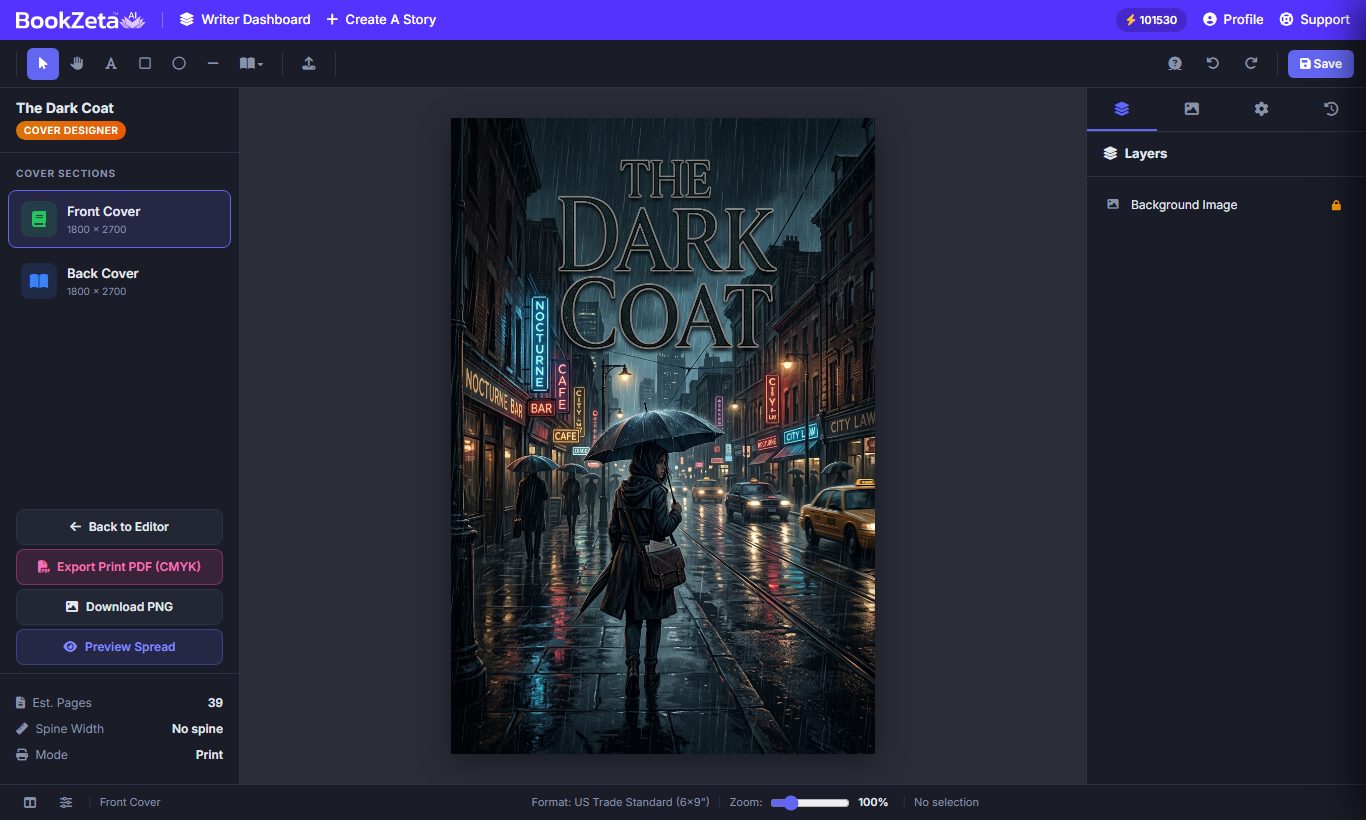
Two cover modes
When you open the Cover Editor, choose the mode that matches how you'll publish:
- Digital — a single front cover for eBooks (for example, Kindle). No bleed is needed.
- Print — a full wrap covering the back cover, spine and front cover, with standard bleed and safe-area guides.
Pick the right mode up front, because it changes the shape of your canvas and which guides appear.
Spine math and print guides
In Print mode, the spine width is calculated automatically from your manuscript's page count, so the spine is exactly as wide as the printed book will be. This is what keeps a print-on-demand cover from coming back misaligned.
Two sets of guides help you stay inside the printable area:
- Bleed — the trim zone at the edges; extend background art into it so there are no white slivers after trimming.
- Safe area — keep titles, author name and any critical art comfortably inside this margin so nothing important gets cut off.
In Print mode the editor clearly marks the back, spine and front regions. You can stretch a background image across the whole spread while keeping text neatly constrained to the front cover or the spine.
Designing the cover
The toolbar gives you the standard design tools — select, text, rectangle, circle and line — plus a large font library and full type styling (size, alignment, bold/italic, color, plus background colors, padding, rounded corners and drop shadows to make text stand out over busy art). Manage stacking order in the layers panel; see Layers, fonts & typography.
You can also generate cover art or upload your own. For the full walkthrough, see Generating AI cover art.
Export
When you're done, the cover is wired into the project's export pipeline automatically, so your EPUB and PDF files come out with the correct cover attached. See your publishing files for how the cover pairs with the interior.
Tips and pitfalls
- Choose Digital vs Print before you design — switching later changes the canvas size.
- Keep title and author text well inside the safe-area guides, especially for print.
- Extend background art into the bleed zone so trimming never leaves a white edge.
- Finalize your page count before exporting a print cover, since the spine width depends on it.