# Creating your first project
> Step-by-step: from the Create screen to your first chapter.
- **Category:** [Getting Started](https://bookzeta.ai/help-center/getting-started)
- **Canonical URL:** https://bookzeta.ai/help-center/getting-started/creating-your-first-project
- **Last Updated:** 2026-11-18
---
Creating your first project takes just a minute. This guide walks you from the Create screen to your first chapter, and points out the choices that matter so you start on the right foot.
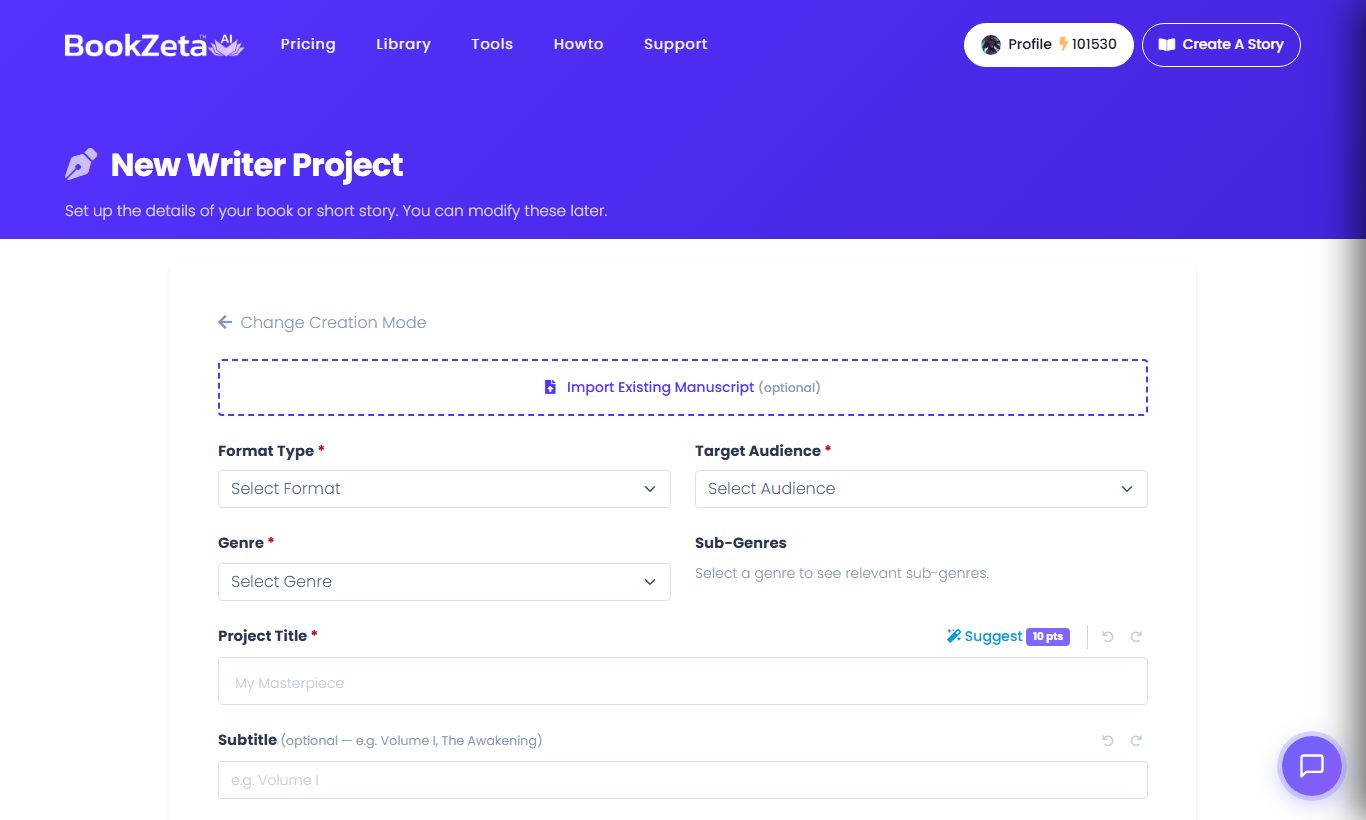
The Create screen, where you choose your mode, story type, genre, audience and description to start a new project.
## Before you start
It helps to have two things loosely in mind: the **kind of work** you want to make (a novel, a short story, a comic, a children's book, and so on) and a **one-line idea** of what it's about. You don't need a polished pitch — a sentence is plenty, and you can refine everything later.
## Step by step
1. **Go to Create.** Use the **Create** screen, or pick *Create A Story* from the top navigation.
2. **Choose your mode and story type.** Pick **Writer** or **Graphic** mode, then the **story type** — book, short story, comic, and so on. Not sure which mode fits? See [Choosing a creation mode](/help-center/getting-started/choosing-a-creation-mode).
3. **Set the genre, audience and description.** The **genre** and **audience** shape tone, vocabulary and content so the result fits your readers. The **description** is your short idea — a line or two is enough.
4. **(Optional) Assign it to a series.** If this work belongs to a larger universe, assign it to a **series** so it can share characters and settings through the [Series Bible](/help-center/series-continuity/series-bible-overview).
5. **Create.** You'll land in the editor, where you can generate or write your first chapter.
## Choosing genre and audience well
These two settings do a lot of quiet work. The **audience** especially matters for children's and all-ages content, since it influences vocabulary and what's appropriate. If your first results feel off in tone, the genre or audience is usually the first thing worth adjusting — you don't have to start over to change direction.
## Already have a manuscript?
If you've written something elsewhere, you don't need to retype it. You can [import it](/help-center/writing-tools/importing-a-manuscript) and BookZeta will split it into chapters automatically, so you can carry on editing and formatting inside the editor.
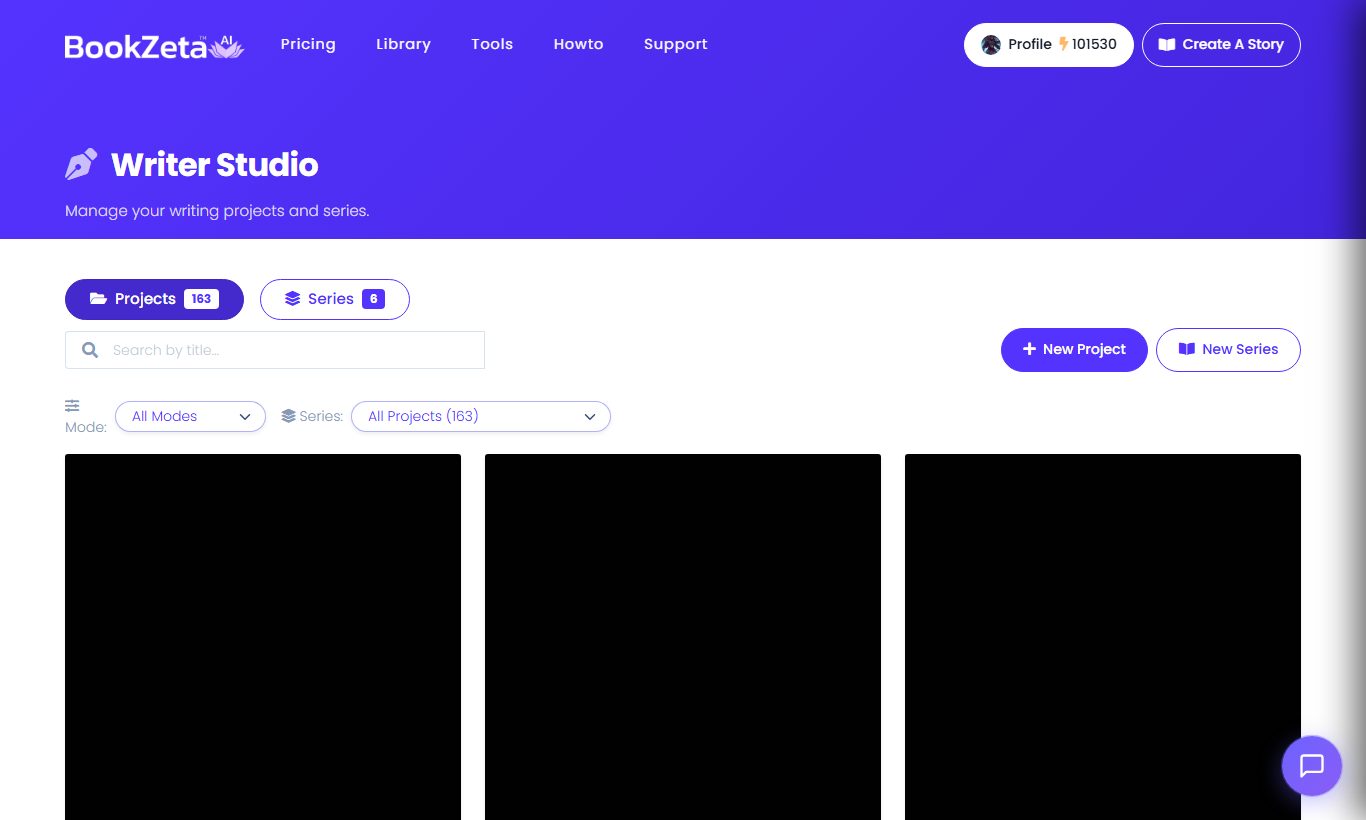
Your projects live on the Writer dashboard, where each one you create appears ready to open and edit.
## What happens next
Once you're in the editor:
- In **Writer Mode**, you can write by hand, or use the [AI writing assistant](/help-center/writing-tools/ai-writing-assistant) to draft, expand or rewrite. See [the Writer editor tour](/help-center/writing-tools/writer-editor-tour).
- In **Graphic Mode**, you'll work on a visual canvas — panels, bubbles and artwork. See [the Graphic mode tour](/help-center/visual-tools/graphic-mode-tour).
## Common questions
**Do I have to decide everything up front?**
No. Genre, audience and description guide the AI's first output, but you can edit your work freely afterward and change direction at any time.
**Will I spend Creation Points just by creating a project?**
Setting up a project and writing by hand are free. AI generations — chapters, images, narration and the like — spend [Creation Points](/help-center/getting-started/understanding-creation-points), and you'll always see the cost before you confirm.
**Can I switch modes later?**
You can keep editing a project in Writer or Graphic mode after you've started, so you're never boxed in by your first choice.